Provalo su di te.Prima di comprarlo.
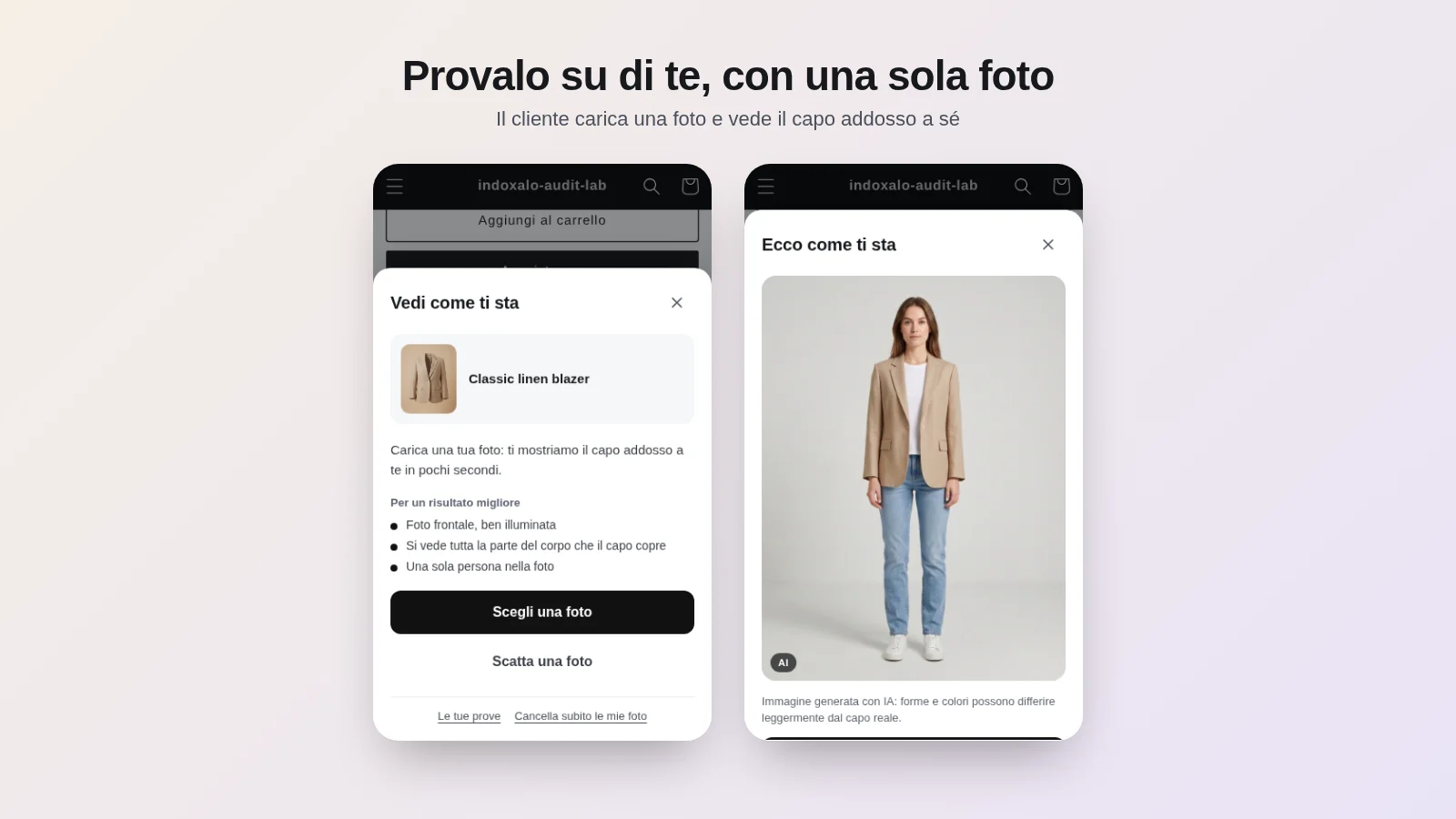
Indoxalo aggiunge il pulsante «Prova virtuale» alle pagine prodotto del tuo negozio Shopify. Il cliente carica una foto e in circa un minuto vede il capo addosso a sé, poi lo aggiunge al carrello senza uscire dalla pagina.
$0
Piano Free: 100 prove al mese
1 = 1
Una foto, un credito
<1 KB
Peso sul tema finché non si apre
24 h
Al massimo, poi la foto si cancella
01
La prova sulla foto del cliente
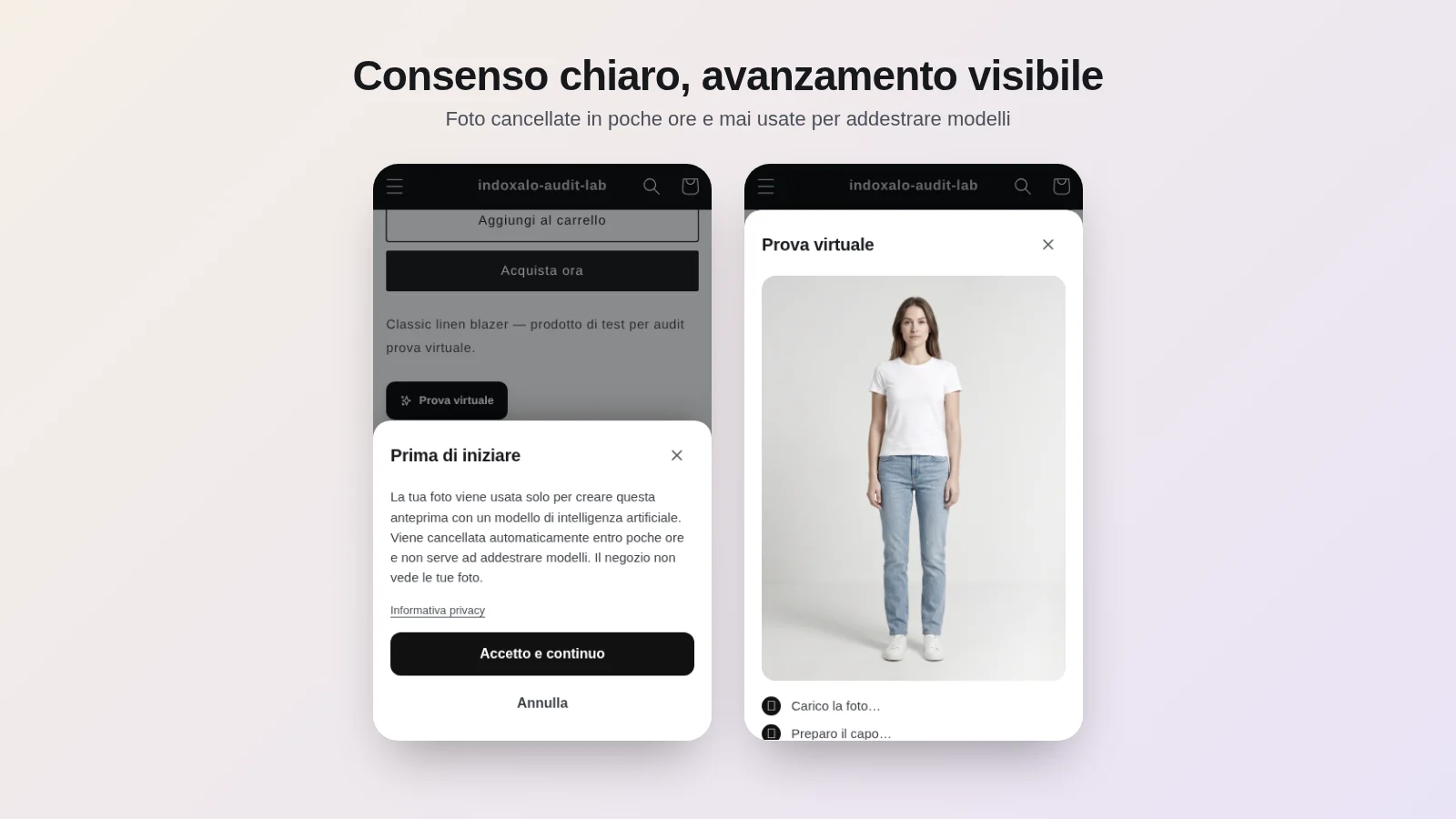
Il cliente sceglie una foto o la scatta al momento, accetta l'informativa e vede il prodotto indossato, con colore, tessuto e taglio del capo vero. Il risultato porta l'etichetta «AI», così nessuno lo scambia per una foto reale.
02
Un blocco nel tema, zero codice
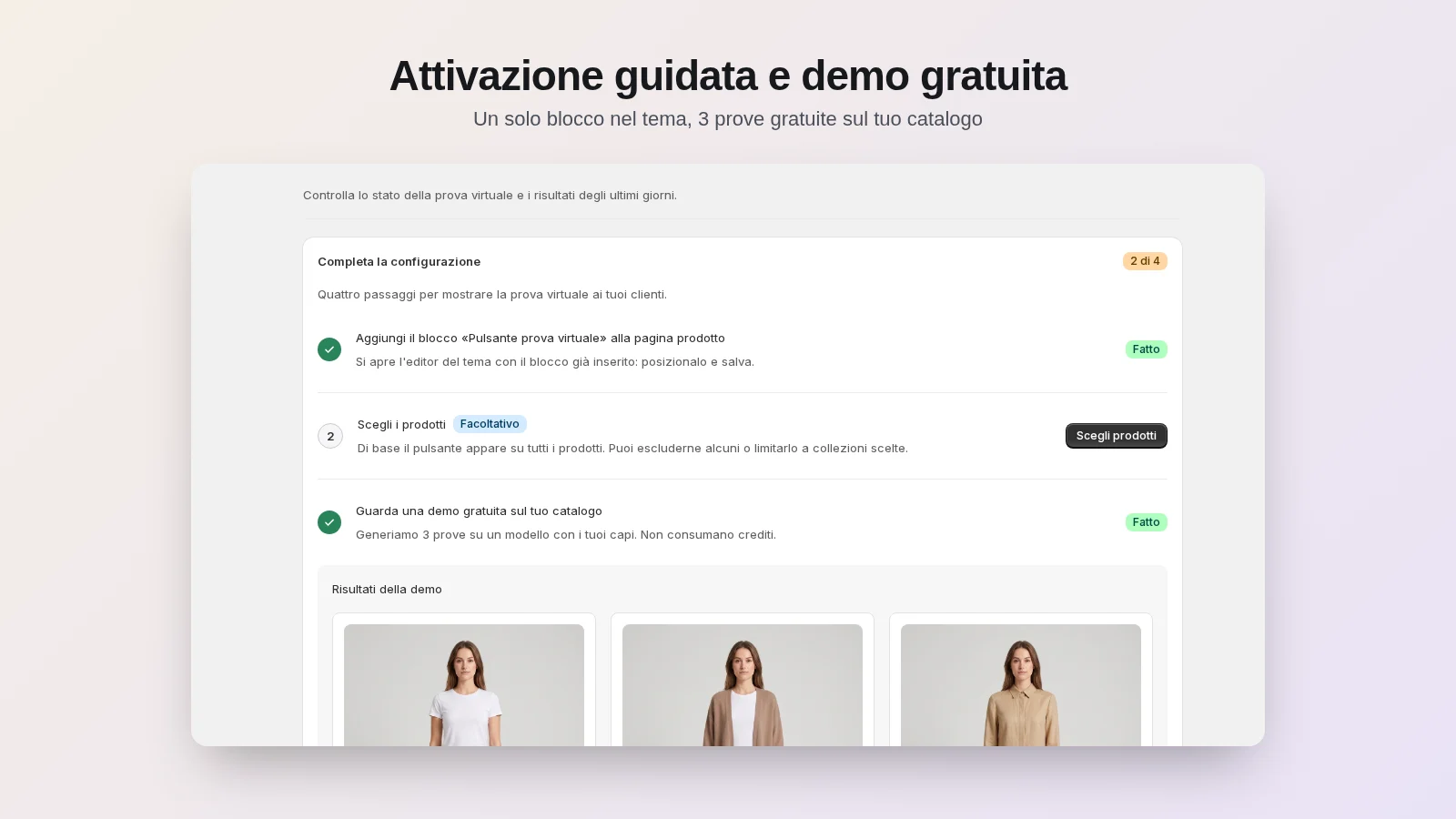
Indoxalo entra con una theme app extension, senza modificare i file del tema. «Aggiungi blocco» apre l'editor con il pulsante già sotto «Aggiungi al carrello»: lo posizioni, scegli stile e colori e salvi.
03
Demo gratuite sul tuo catalogo
Appena installi, la guida di configurazione genera tre prove sui tuoi capi con un modello di esempio. Le demo non consumano crediti e non finiscono nelle statistiche.
04
1 foto = 1 credito, niente sorprese
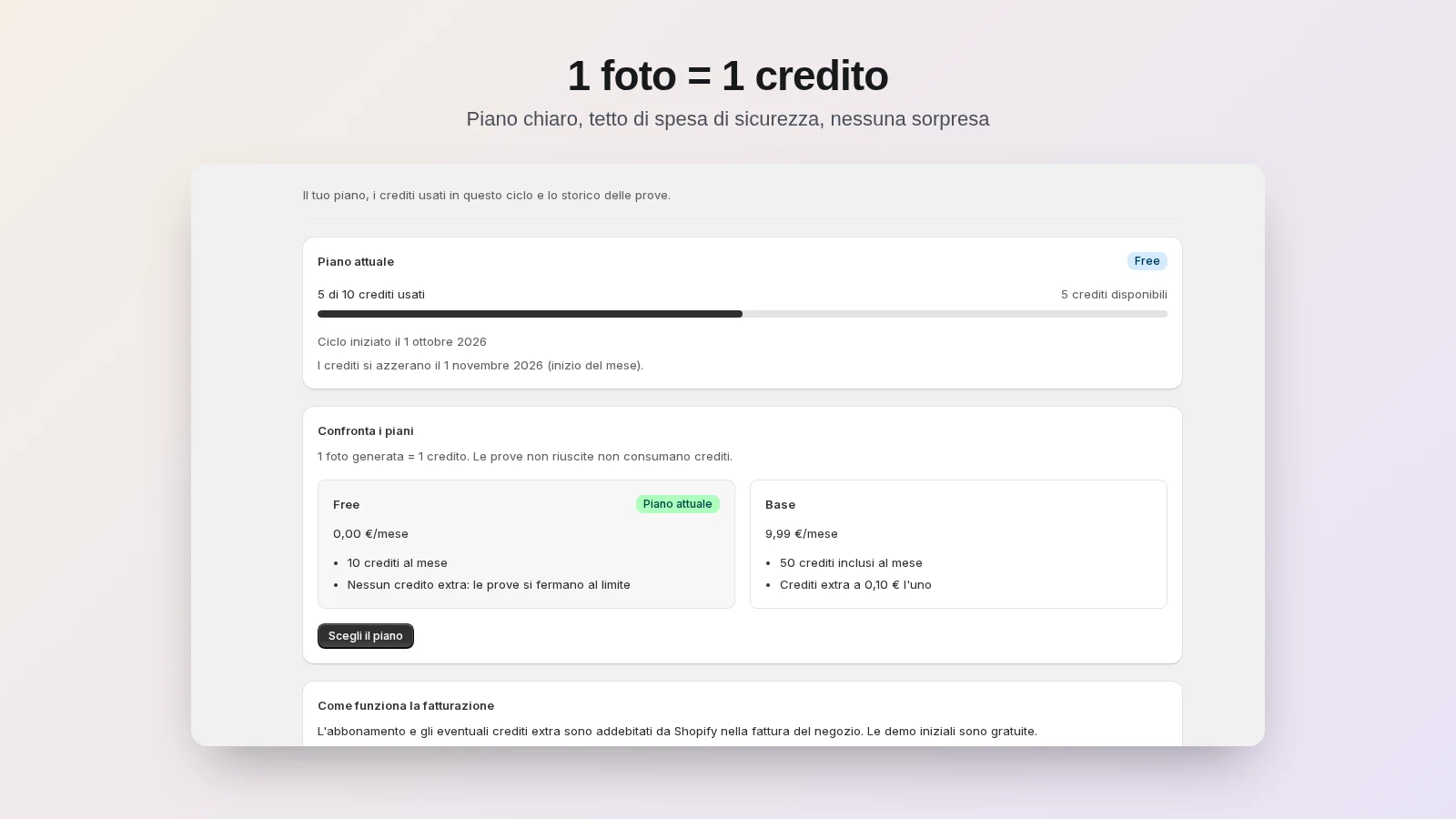
Paghi solo le prove riuscite: quelle non riuscite non consumano crediti. Il tetto mensile di sicurezza blocca la spesa, e quando i crediti finiscono il pulsante si nasconde: i tuoi clienti non vedono mai un errore.
05
Privacy prima di tutto
Consenso esplicito alla prima prova, foto conservate nell'Unione europea e cancellate in automatico dopo le ore che scegli tu (da 1 a 24), mai usate per addestrare modelli. Il cliente può cancellare i suoi dati in un tocco.
06
Dal risultato al carrello
Sotto il risultato il cliente aggiunge al carrello la variante scelta o torna al prodotto, a tua scelta. Può condividere la prova con un link sul dominio del tuo negozio e ritrovare le prove fatte sugli altri prodotti.
07
Leggero e accessibile
Sul tema pesa meno di 1 KB finché il cliente non apre la prova; il resto, circa 15 KB, arriva solo al clic. Finestra isolata in uno Shadow DOM, accessibile secondo le WCAG 2.2 AA, in italiano e in inglese.
08
Analisi chiare
Prove riuscite, clienti unici, tasso di successo, tempi e prodotti più provati negli ultimi 30 giorni, con lo storico di ogni prova e del credito usato. Le demo sono sempre escluse.
Dall'installazione alla prima prova in cinque minuti
La guida di configurazione nella Home ti accompagna passo per passo, e in ogni pagina il menu Aiuto apre un tour guidato e una guida video.
01
Installa
Da Shopify App Store, accettando un solo permesso: leggere i prodotti. Atterri nella Home, dentro l'admin Shopify.
02
Aggiungi il blocco
«Aggiungi blocco» apre l'editor del tema con il pulsante già inserito. Premi Salva e il passo si spunta da solo.
03
Guarda le demo
Tre prove gratuite sul tuo catalogo, per vedere subito la qualità sui tuoi capi.
04
Scegli il piano
Resta su Free o passa a Premium. Il piano si paga nella normale fattura di Shopify.
Tutto sotto controllo, dentro l'admin Shopify
La Home ti dice se il pulsante è pubblicato nel tema, quale piano usi e quanti crediti restano, con le demo sul tuo catalogo e i numeri degli ultimi giorni.
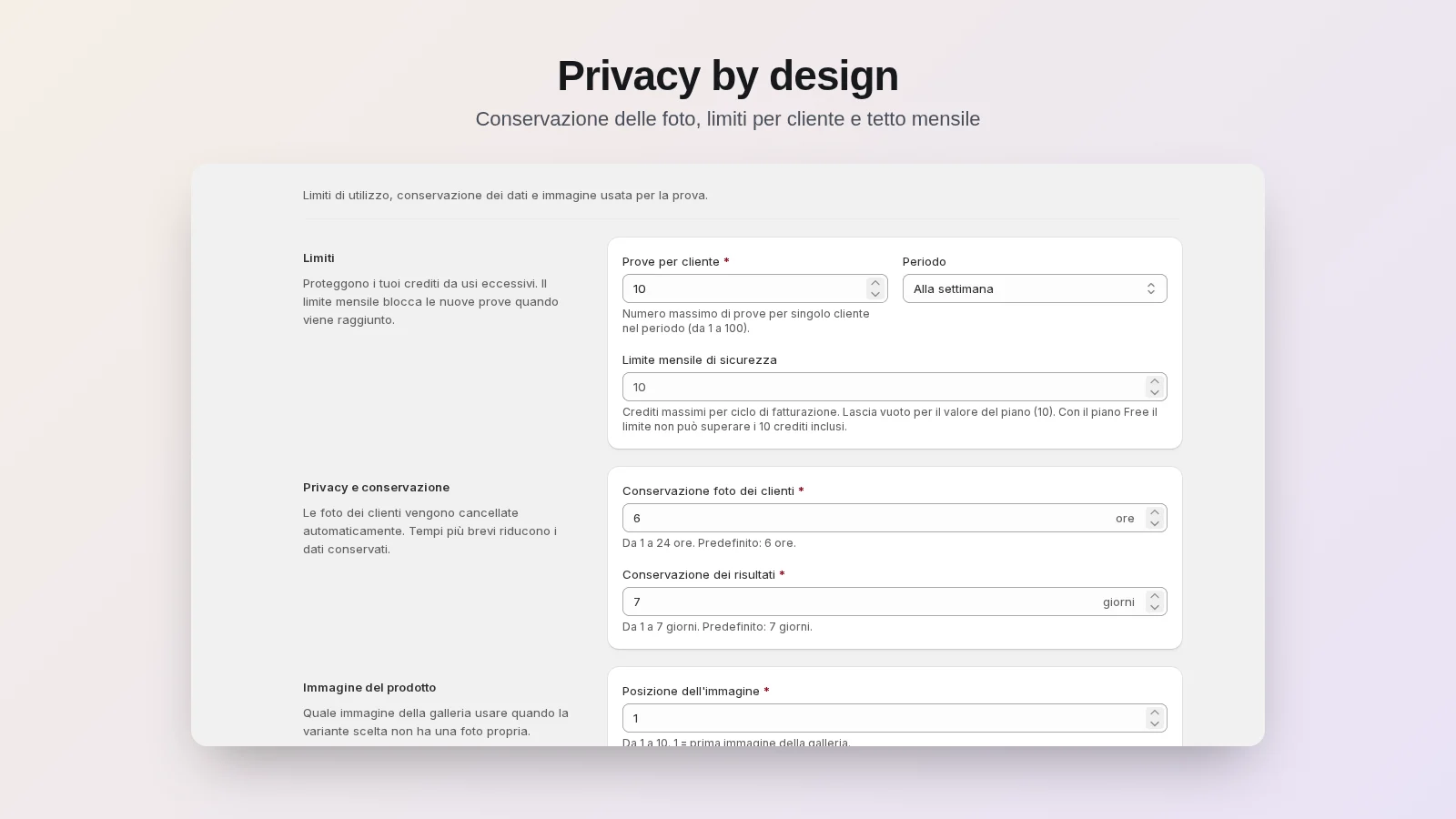
Paghi le prove riuscite. Nient'altro.
Si parte dal piano Free. Ogni foto generata consuma un credito, le prove non riuscite e le demo no. Gli abbonamenti sono addebitati da Shopify sulla normale fattura del negozio.
Il tetto mensile in Impostazioni decide quanto puoi spendere al massimo: superato quello, il pulsante si nasconde fino al ciclo successivo.
Free
$0
- 100 prove virtuali al mese
- Pulsante prova virtuale nel tema
- Foto cancellate in poche ore
- Analisi delle prove
Premium
$9.99/30 giorni
- 50 prove virtuali incluse ogni mese
- Prove extra a $0,03 l'una
- Tetto di spesa mensile di sicurezza
- Analisi e storico delle prove
Prezzi in dollari USA. Fa fede l'importo mostrato sulla pagina dei piani di Shopify al momento della scelta. Gratis sui negozi di sviluppo dei partner.
Le risposte che diamo più spesso
Quanto costa una prova virtuale?
Un credito. Il piano Free include 100 prove al mese, il piano Premium 50 prove ogni 30 giorni più quelle extra a $0,03 l'una. Le prove non riuscite e le demo iniziali non consumano crediti.
Cosa succede quando finiscono i crediti?
Il pulsante si nasconde da solo fino al ciclo successivo, o finché non cambi piano o alzi il tetto. I clienti non vedono mai messaggi di errore o di crediti esauriti.
Quanto ci mette la prova?
Di solito circa un minuto. Mentre aspetta, il cliente vede l'avanzamento passo per passo e può chiudere la finestra: la prova resta nello storico.
Che fine fanno le foto dei clienti?
Restano in uno storage nell'Unione europea, accessibili solo con link firmati di breve durata, e si cancellano in automatico dopo le ore impostate (da 1 a 24). Non le usiamo né le vendiamo per addestrare modelli. Il cliente può cancellare subito i suoi dati dalla finestra di prova.
Funziona con ogni prodotto?
È pensato per l'abbigliamento: capi, capispalla, abiti, cappelli e accessori. Rende al meglio con foto prodotto su sfondo chiaro e con foto del cliente frontali, a figura intera e ben illuminate. Puoi escludere i prodotti su cui non ha senso.
Devo toccare il codice del tema?
No. Il pulsante è un blocco dell'app che si aggiunge dall'editor del tema, e si toglie allo stesso modo. Disinstallando l'app, il blocco sparisce dal negozio.
In che lingue è disponibile?
App e finestra di prova sono in italiano e in inglese. La finestra segue la lingua del negozio che il cliente sta visitando.
Cosa succede se disinstallo?
Il pulsante sparisce dal negozio e l'abbonamento si chiude. Le foto si cancellano comunque alla scadenza, e i dati del negozio vengono eliminati quando Shopify lo richiede, entro 48 ore dalla disinstallazione.
Ti rispondiamo noi, che l'app l'abbiamo scritta
Installazione del blocco nel tema, scelta dei prodotti, piani e crediti, privacy. Dentro l'app, il menu Aiuto di ogni pagina offre un tour guidato e una guida video.
Non inviare password, dati di pagamento o foto dei clienti nei messaggi di supporto.
Privacy
Richieste sui dati personali a [email protected]. Le informative sono qui sotto, per te e per i tuoi clienti.

Try it on yourself.Before you buy it.
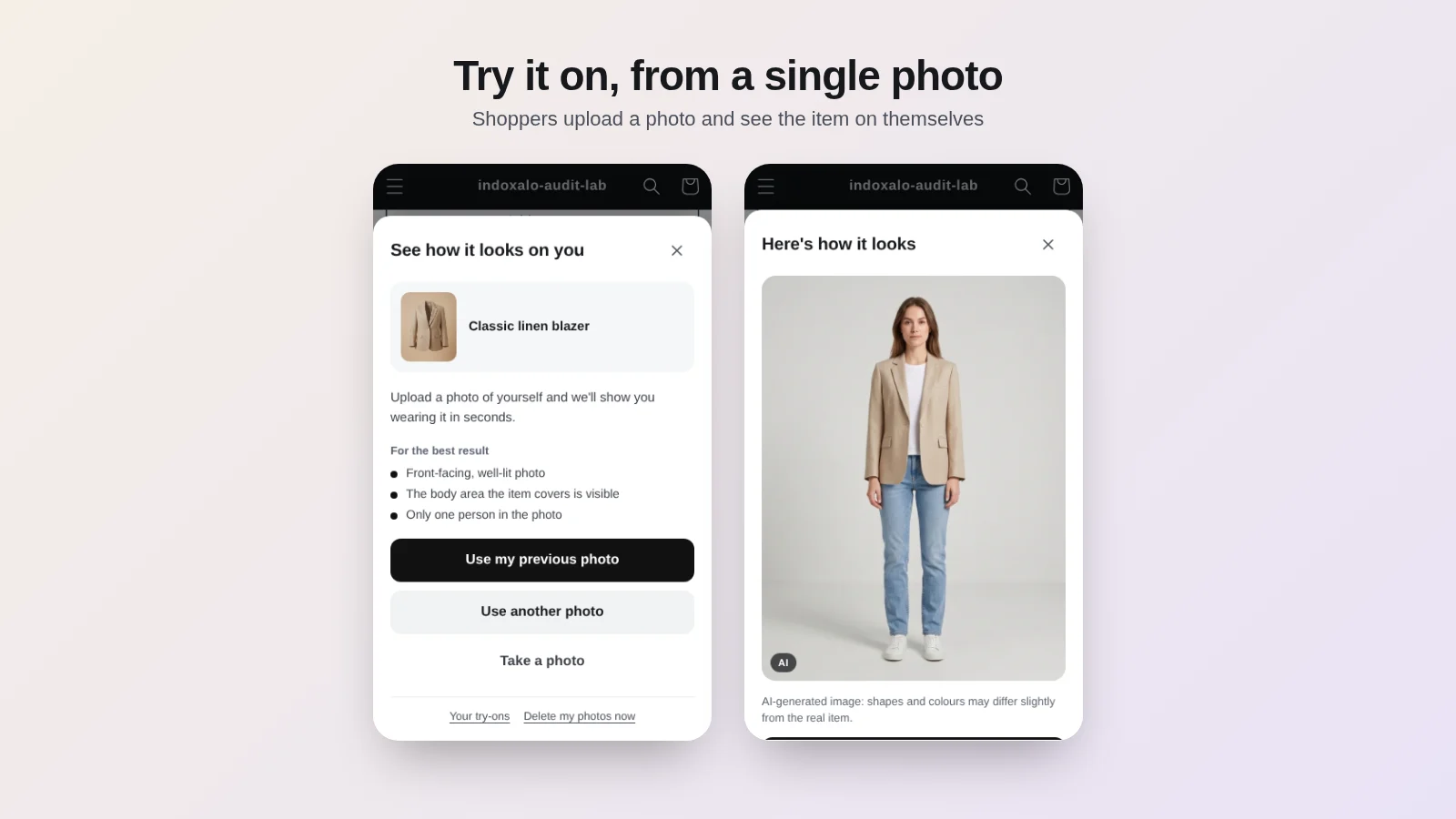
Indoxalo adds a “Try it on” button to the product pages of your Shopify store. Shoppers upload a photo and in about a minute see the item on themselves, then add it to cart without leaving the page.
$0
Free plan: 100 try-ons a month
1 = 1
One photo, one credit
<1 KB
Theme weight until opened
24 h
At most, then the photo is deleted
01
Try-on on the shopper's photo
Shoppers pick a photo or take one, accept the notice and see the product worn, with the real item's colour, fabric and cut. The result carries an “AI” label, so nobody mistakes it for a real photo.
02
One theme block, zero code
Indoxalo ships as a theme app extension, without touching your theme files. “Add block” opens the theme editor with the button already under “Add to cart”: place it, pick style and colours, and save.
03
Free demos on your catalogue
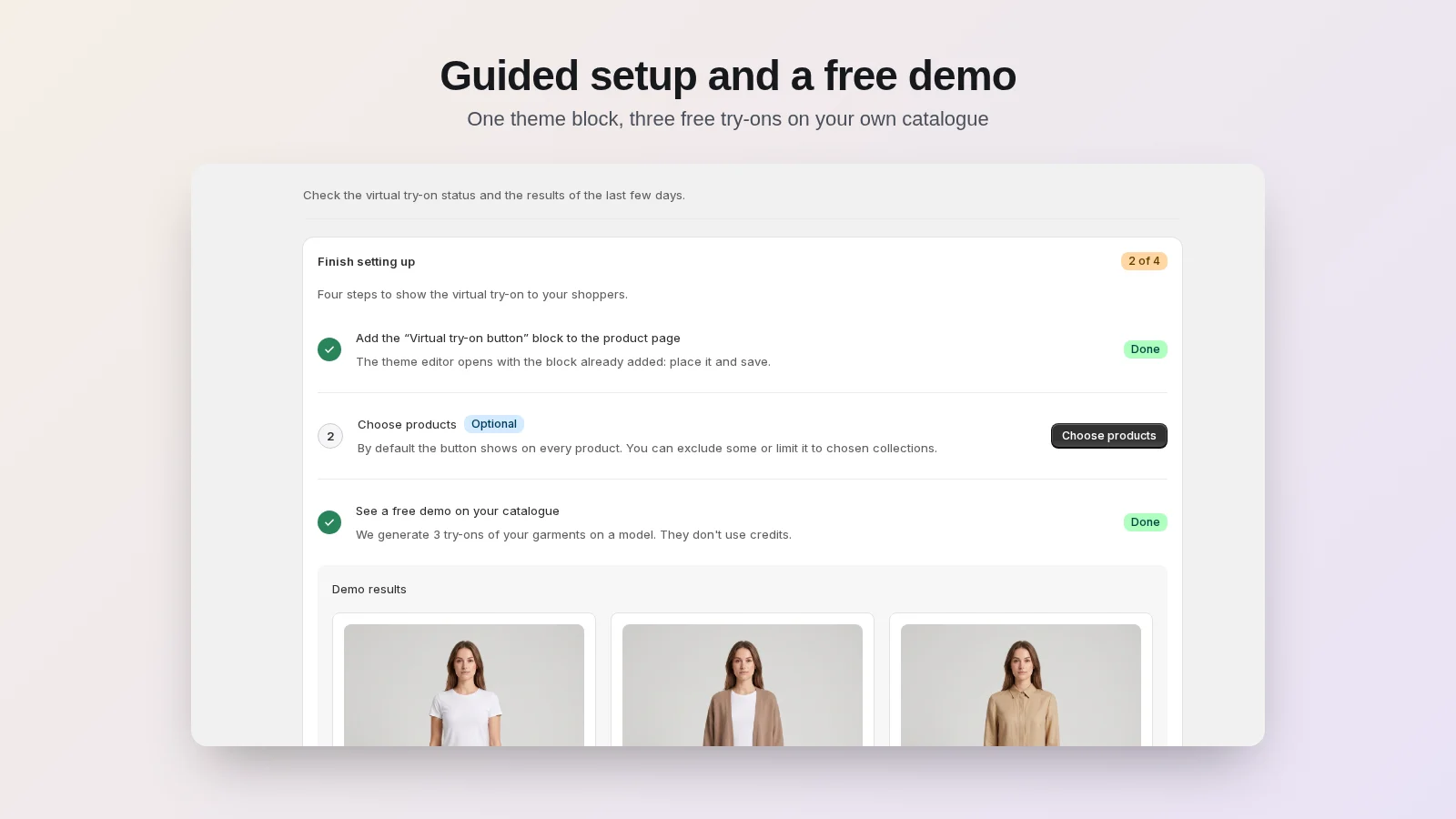
Right after install, the setup guide generates three try-ons on your own items with a sample model. Demos never use credits and never show up in your stats.
04
1 photo = 1 credit, no surprises
You only pay for successful try-ons: failed ones use no credits. The monthly safety cap limits spend, and when credits run out the button hides itself: your shoppers never see an error.
05
Privacy first
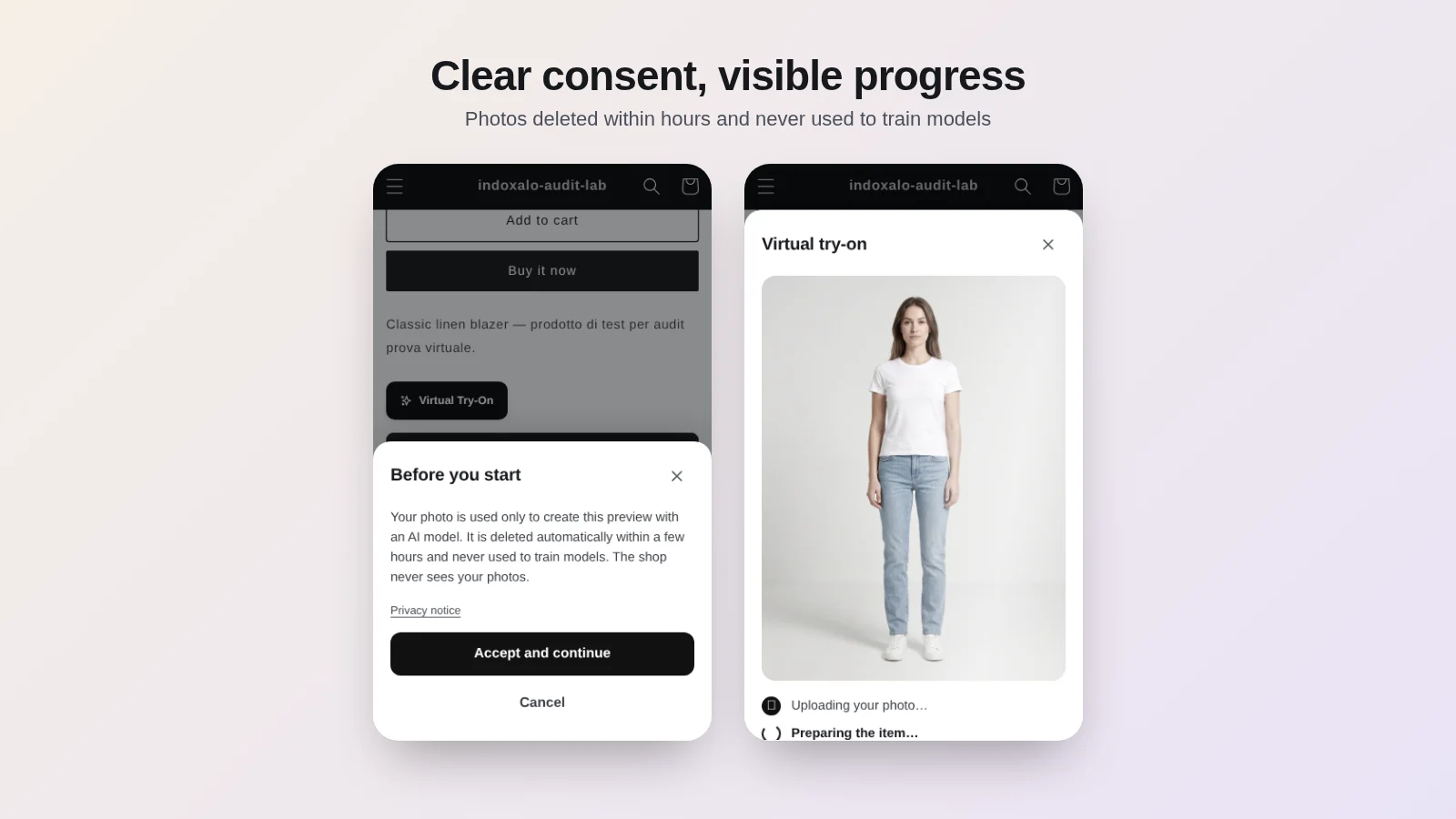
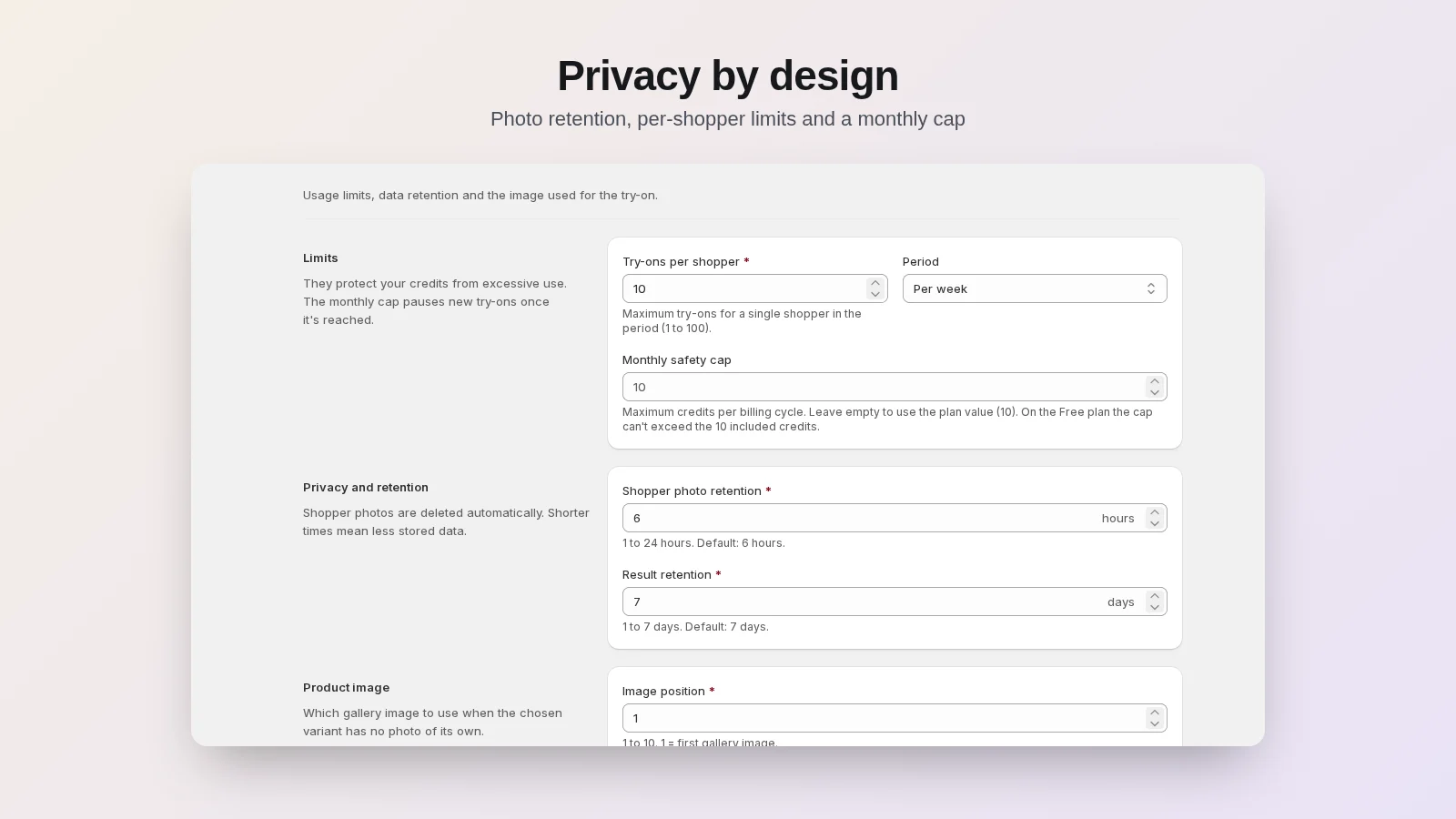
Explicit consent on the first try-on, photos stored in the European Union and deleted automatically after the hours you choose (1 to 24), never used to train models. Shoppers can delete their data in one tap.
06
From result to cart
Under the result, shoppers add the chosen variant to cart or go back to the product, as you prefer. They can share the try-on with a link on your store's domain and find the try-ons they made on other products.
07
Light and accessible
It weighs under 1 KB on your theme until a shopper opens the try-on; the rest, about 15 KB, loads on click. Isolated in a Shadow DOM, accessible to WCAG 2.2 AA, in English and Italian.
08
Clear analytics
Successful try-ons, unique shoppers, success rate, timing and most tried products over the last 30 days, with the history of every try-on and credit used. Demos are always excluded.
From install to first try-on in five minutes
The setup guide on the Home page walks you through it, and on every page the Help menu opens a guided tour and a video guide.
01
Install
From the Shopify App Store, granting a single permission: read products. You land on the Home page, inside the Shopify admin.
02
Add the block
“Add block” opens the theme editor with the button already placed. Click Save and the step ticks itself.
03
Watch the demos
Three free try-ons on your catalogue, to see the quality on your own items right away.
04
Pick a plan
Stay on Free or move to Premium. The plan is billed on your regular Shopify invoice.
Everything under control, inside the Shopify admin
The Home page tells you whether the button is live in your theme, which plan you're on and how many credits are left, with the demos on your catalogue and recent numbers.
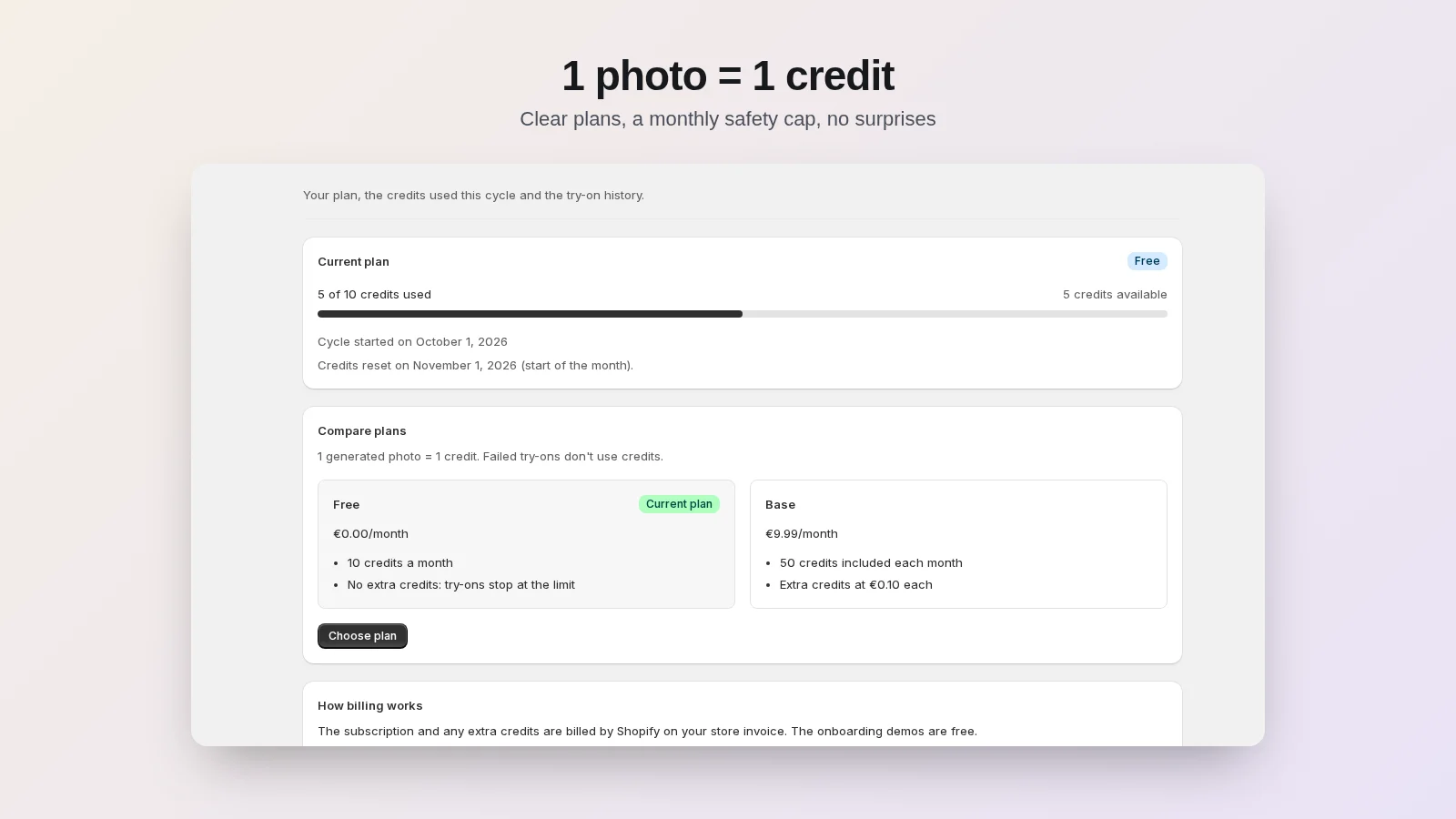
Pay for successful try-ons. Nothing else.
Start on the Free plan. Each generated photo uses one credit; failed try-ons and demos don't. Subscriptions are billed by Shopify on your regular store invoice.
The monthly cap in Settings decides the most you can spend: above it the button hides until the next cycle.
Free
$0
- 100 virtual try-ons per month
- Try-on button in your theme
- Photos deleted within hours
- Try-on analytics
Premium
$9.99/30 days
- 50 virtual try-ons included every month
- Extra try-ons at $0.03 each
- Monthly safety spending cap
- Analytics and try-on history
Prices in US dollars. The amount shown on Shopify's plan page when you choose a plan is final. Free on Partner development stores.
The answers we give most often
How much does a try-on cost?
One credit. The Free plan includes 100 try-ons a month, the Premium plan 50 every 30 days plus extras at $0.03 each. Failed try-ons and the onboarding demos use no credits.
What happens when credits run out?
The button hides itself until the next cycle, or until you change plan or raise the cap. Shoppers never see error or out-of-credits messages.
How long does a try-on take?
Usually about a minute. While waiting, shoppers see the progress step by step and can close the window: the try-on stays in their history.
What happens to shopper photos?
They live in storage in the European Union, reachable only through short-lived signed links, and are deleted automatically after the hours you set (1 to 24). We never use or sell them to train models. Shoppers can delete their data right away from the try-on window.
Does it work with every product?
It's built for apparel: tops, outerwear, dresses, hats and accessories. It works best with product photos on a light background and with front-facing, full-body, well-lit shopper photos. You can exclude products where it doesn't make sense.
Do I have to touch my theme code?
No. The button is an app block you add from the theme editor, and remove the same way. If you uninstall the app, the block disappears from your store.
Which languages are available?
The app and the try-on window are in English and Italian. The window follows the language of the store the shopper is browsing.
What happens if I uninstall?
The button disappears from your store and the subscription ends. Photos are deleted on schedule anyway, and store data is erased when Shopify requests it, within 48 hours of uninstalling.
You talk to the people who built the app
Adding the theme block, choosing products, plans and credits, privacy. Inside the app, the Help menu on every page offers a guided tour and a video guide.
Don't send passwords, payment details or shopper photos in support messages.
Privacy
Personal data requests to [email protected]. The notices for you and your shoppers are linked below.